AI Video Object Remover
Remove unwanted objects, people, text, logos, or watermarks from your videos with AI precision. Erase anything seamlessly while keeping your footage intact.
How to Remove Objects from Video in 3 Steps
Step 1: Upload Your Video
Upload the video with unwanted objects. Supports MP4, MOV, and all common video formats.
Step 2: Select Objects to Remove
Use the brush tool to paint over objects you want to erase. Adjust the timeline to cover the full duration where the object appears.
Step 3: Remove & Download
Choose your removal method (Gaussian Blur, Smooth Fill, or Clone Patch) and download your clean video instantly.
AI-Powered Object Removal
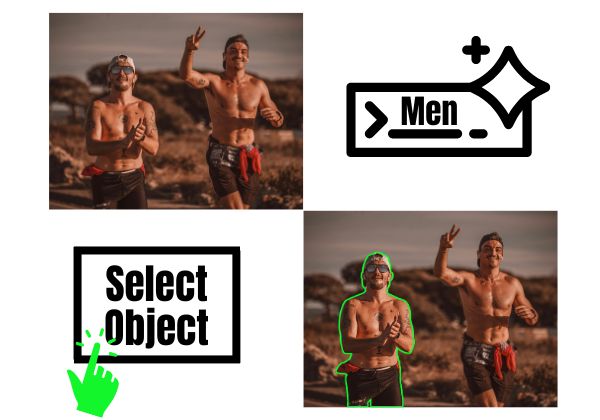
Advanced AI technology automatically detects and removes objects, people, and items from videos. Erase unwanted elements, remove watermarks, delete logos, or clear distracting backgrounds with professional accuracy—no manual frame-by-frame editing required.
Multiple Removal Methods
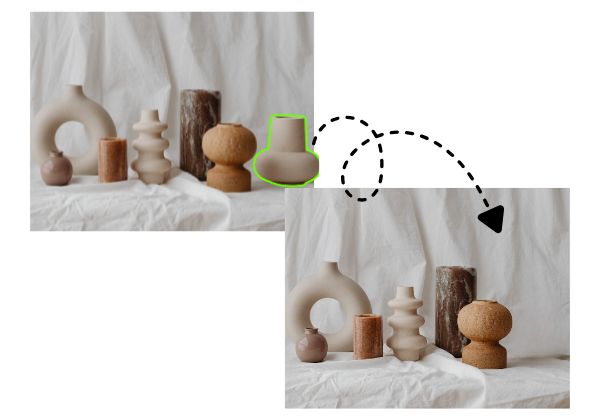
Choose from multiple AI removal techniques: Gaussian Blur for natural blending, Smooth Filling for seamless patches, Color Filling to match backgrounds, or Clone Patch to copy nearby pixels. Each method ensures clean, artifact-free results tailored to your scene.
Moving Object Tracking
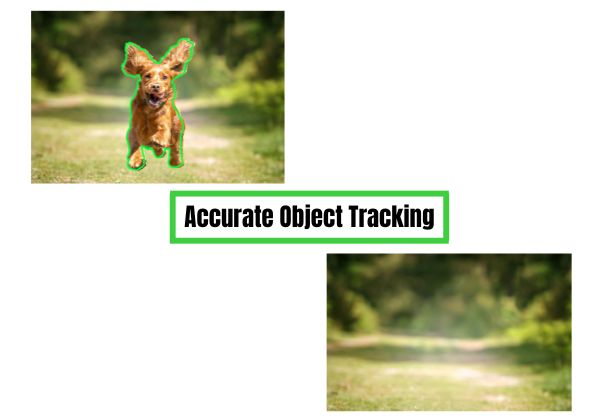
Remove moving objects with intelligent motion tracking. Our AI automatically follows and erases objects throughout your clip as they move, rotate, or change size—perfect for removing people walking, logos on moving vehicles, or any dynamic elements.

Watermark & Logo Removal
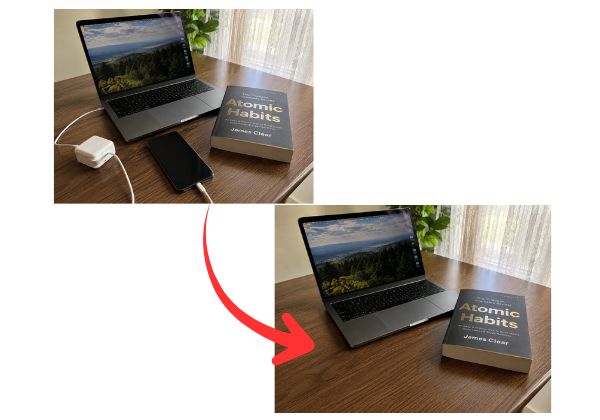
Permanently remove watermarks, logos, timestamps, and text overlays from your videos. Clean up stock footage, remove TikTok watermarks, erase YouTube logos, or delete any branding elements while maintaining video quality.
Works on Any Object
Remove anything you see: people, vehicles, animals, text, signs, poles, wires, unwanted backgrounds, or any visual distraction. Select the object with a brush tool and let AI handle the rest with frame-accurate removal.
Remove Anything from Video with AI Precision
BGBlur makes video object removal simple and professional. Use AI to erase people, watermarks, logos, text, vehicles, animals, or any unwanted elements directly in your browser—no complex software needed.
Select objects with a brush tool, choose your removal method (blur, fill, or clone), and get clean results in minutes. Perfect for content creators, videographers, marketers, and anyone who needs quick video cleanup. Try it at /ai-video-object-remover.
Powered by BGBlur
AI Video Object Remover FAQ
Upload your video, use the brush tool to paint over the objects you want to remove, adjust the timeline to cover when the object appears, select your removal method, and download your clean video.
Yes. BGBlur uses AI motion tracking to automatically follow and remove objects as they move through your video. Select the object once, and AI tracks it across all frames.
Yes. You can remove TikTok watermarks, YouTube logos, timestamps, stock footage watermarks, or any text overlays. Paint over the watermark, select smooth filling or clone patch, and export your clean video.
BGBlur offers multiple methods: Gaussian Blur (blends naturally with background), Smooth Filling (fills seamlessly), Color Filling (matches background colors), and Clone Patch (copies nearby pixels). Choose the method that works best for your scene.
You can remove people, animals, vehicles, text, logos, watermarks, poles, wires, signs, unwanted backgrounds, or any visual element. If you can see it, you can remove it.
BGBlur preserves your original video resolution and quality. Only the selected areas are processed, while the rest of your footage stays pristine.
Yes. You can select and remove multiple objects in a single pass. Each object can use different removal methods for optimal results.
Object removal completely erases elements from your video, while blurring only obscures them. Choose removal when you want clean footage without traces, or blur when you need to protect privacy while keeping the area visible.
No. BGBlur runs entirely in your browser. Upload, remove objects, and download—no installation, no plugins, no complex editors needed.
AI Video Object Remover supports MP4 and MOV videos up to 1GB. The current object removal workflow accepts clips up to 10 seconds per upload.
Processing time depends on video length and number of objects. Most videos process within minutes. You can track progress in real-time and download immediately when ready.
Yes, BGBlur's AI automatically tracks moving objects, faces, and vehicles. You do not need to manually mask every frame; the motion-aware tracker keeps the blur locked onto the subject as it moves.
BGBlur is a completely web-based tool. You can upload any video or image, select the Face Blur tool, and apply pixelation or blur instantly inside your browser without downloading any apps or plugins.
Absolutely. Our AI is trained specifically to detect and blur license plates in driving footage, dashcams, and street-view videos. It helps creators and transport fleets stay compliant with privacy laws.
Your privacy is our priority. BGBlur leverages advanced client-side technologies to process videos securely. Your files are processed locally in your browser and are never uploaded or stored permanently on external servers.
Yes! BGBlur is fully responsive and optimized for mobile browsers. You can easily blur a video background or pixelate faces directly on your iPhone, iPad, or Android phone.
Limits depend on the feature. Standard video blur tools such as face blur, license plate blur, background blur, blur anything, screen blur, NSFW blur, and face anonymization support up to 500MB and 5 minutes on the free plan, or up to 1GB and 10 minutes on paid plans. Object Remover supports MP4 and MOV videos up to 1GB and 10 seconds per clip. Voice Anon direct uploads support up to 100MB, while the upload/URL workflow supports audio or video files up to 500MB and under 10 minutes.
User Reviews
Share your experience and help others make informed decisions
Write a Review
Community Score
0.0
/ 5
Based on 0 reviews
All Reviews (0)
No reviews yet
Be the first to share your experience and help others make informed decisions!
Ready to blur your video content?
Start protecting privacy and creating professional video blur effects today with our AI-powered tool. No downloads required - blur directly in your browser.
Start Blurring Now